Templates in Dropbox Sign exist for targeted signature requests sent to named signers by email, while template links exist for self-serve signing where anyone with the URL can start the process. If you're routing a negotiated contract to a specific person, use a template. If you're collecting waivers or intake forms from an unpredictable audience, use a template link. Both live within Dropbox Sign's plan structure, and editing each one carries different consequences for signers already in progress.
TL;DR:
- Templates are best for negotiated contracts sent to specific signers, while template links suit high-volume, self-serve signing workflows open to anyone.
- Changing a template requires canceling and restarting pending requests, whereas editing a template link generally keeps the same URL active after updates.
- API integration is recommended when signers are unknown or when embedding signing into a product, especially for automating prefill and maintaining signers inside an application.
- Templates restrict access to designated signers and roles, while links are effectively public unless you add restrictions, making distribution control crucial.
- Most teams should choose templates for personalized, negotiated agreements and links for standardized, scalable forms, avoiding misapplications like using links for negotiations.
Templates vs template links at a glance
The two tools solve different distribution problems, and the distinction matters most once documents are already out for signature.
Templates send a signature request to specific people you name in advance. You assign signer roles, attach email addresses, and Dropbox Sign notifies each signer directly. Template links skip that targeting: you generate one URL, publish it wherever you want, and whoever opens it becomes the signer. According to Dropbox Sign's help documentation, templates for individualized requests and template links for high-volume, self-serve workflows like website waivers or intake forms represent the core split.
A few operational differences follow from that split:
- Signer assignment: templates lock in named signers and roles ahead of time; template links let the signer self-identify when they open the URL.
- Merge fields: both support prefilled fields, but templates make it easier to personalize content per named recipient.
- Editing impact: changing a template can disrupt requests already sent, while a template link's URL stays constant through edits.
- Access: templates reach only the people you email, while template links are effectively public unless you add restrictions.
- Plan quotas: availability and the number of templates or template links you can create depend on your Dropbox Sign plan.
Picture a liability waiver embedded on an event registration page: a template link handles that cleanly. Now picture a vendor services agreement with specific contract terms negotiated for one counterparty: that calls for a template sent directly to the named signer.
How to create and share a template link
Template links work best when you want a repeatable, public entry point into a signing flow without emailing each recipient individually.
- Open Dropbox Sign and start a new template, then choose the template link option instead of a direct signature request.
- Upload the document and place the required fields, including any signer role tags.
- Configure signer roles and decide whether any fields should stay optional versus required.
- Generate the link and copy the URL for distribution on your website, in a QR code, or through a shared channel.
- Test the link yourself before publishing it anywhere public-facing.
Dropbox Sign's documentation states plainly that template links allow anyone with the link to sign the document, so treat distribution as public by default. If your plan or workflow calls for restricting who can sign, build that control into your intake process rather than assuming the link itself limits access.
Pro Tip: Keep a staging version of any public-facing template link so you can test document changes before rotating the live link that's already published on your site.
Track how often the link gets used, and rotate it if it's ever shared somewhere you didn't intend.
Creating a template for sender-driven requests
Templates fit situations where you know exactly who needs to sign and want to control the sequence and message.
- Upload the base document and mark the fields that need signer input.
- Define signer roles in order, so routing follows the right sequence when multiple parties are involved.
- Set up merge fields for any data that changes per recipient, such as names, dates, or deal terms.
- Save the template, then use it to start a new signature request addressed to named signers.
- Add a personalized message if the context calls for one, since templates support per-request customization that links don't.
Merge fields filled in at send time populate the document automatically for each named signer, which keeps a negotiated agreement accurate without manual edits to the base file. Templates suit negotiated contracts, multi-party routing, and any request where the personal context of the message matters as much as the document itself.
What happens when you edit a template or link
Editing behavior is where templates and template links diverge in ways that can catch teams off guard mid-workflow.
Changing the underlying document on a template typically forces you to cancel pending signature requests and reissue them, because the signers already in progress were working from the prior version. Dropbox Sign's guidance on editing templates and links confirms that modifying a template requires restarting the signature process for anyone with an open request. Template links behave differently: editing the link's underlying template keeps the same URL, so any page, email, or QR code where you published that link doesn't need to change.

If you need to update a document that's already circulating, notify affected signers before canceling and recreating their requests. For a public template link, you can often update the content in place and let the existing URL keep working, which avoids breaking external references.
Developer and embedded signing considerations
Manual templates and links work fine for low-volume or one-off requests, but product teams building signing into an application usually need programmatic control instead.
Dropbox Sign's API supports creating embedded template drafts, pre-filling merge fields, and generating edit URLs for use inside your own product rather than redirecting users to an external page. The TemplateCreateEmbeddedDraftRequest documentation notes that template creation can be asynchronous, so implementing callbacks for template_created and template_error events avoids race conditions where an automation fires before the template is actually ready.
A short checklist for when to reach for the API instead of manual templates:
- You need to prefill signer data automatically from your own database rather than typing it into Dropbox Sign by hand.
- Your signing flow needs to stay inside your product's interface through an embedded iframe rather than sending signers elsewhere.
- Your volume makes manual template creation or link management impractical.
- Your team needs white-labeled branding on the signing experience itself.
API-driven embedded signing lets automation handle prefill and document assembly, removing manual template upkeep from your team's workload, according to Dropbox Sign's embedded template documentation.
A practical checklist for choosing between the two
The decision usually comes down to three questions, and most teams overcomplicate it.
First, do you know your signers in advance? If yes, a template built around named roles is the cleaner choice. If your audience is open or unpredictable, a template link fits better. Second, does the document need negotiation or personalization before signing, or is it a fixed form collected at scale? Negotiated agreements belong with templates; standardized intake belongs with links. Third, are you building a product feature rather than running a manual process? Once you need to prefill fields from your own systems or keep signers inside your application, neither manual templates nor links are the right tool: that's when embedded, API-driven signing earns its complexity.
Most teams don't need to pick one approach forever. The mistake is using a template link for a negotiated deal that needs editing mid-flight, or building a manual template process for a high-volume form that should have been a link from the start.
— Alex
A unified alternative for teams managing contracts end to end
Templates and links solve the signing step, but signing is rarely the only step in a deal. We built Formable around the idea that drafting, redlining, review, and signature should live in one place instead of bouncing between separate tools. Our contract creator combines templates with generative AI, so you're not starting from a blank document every time a new MSA or order form needs to go out.
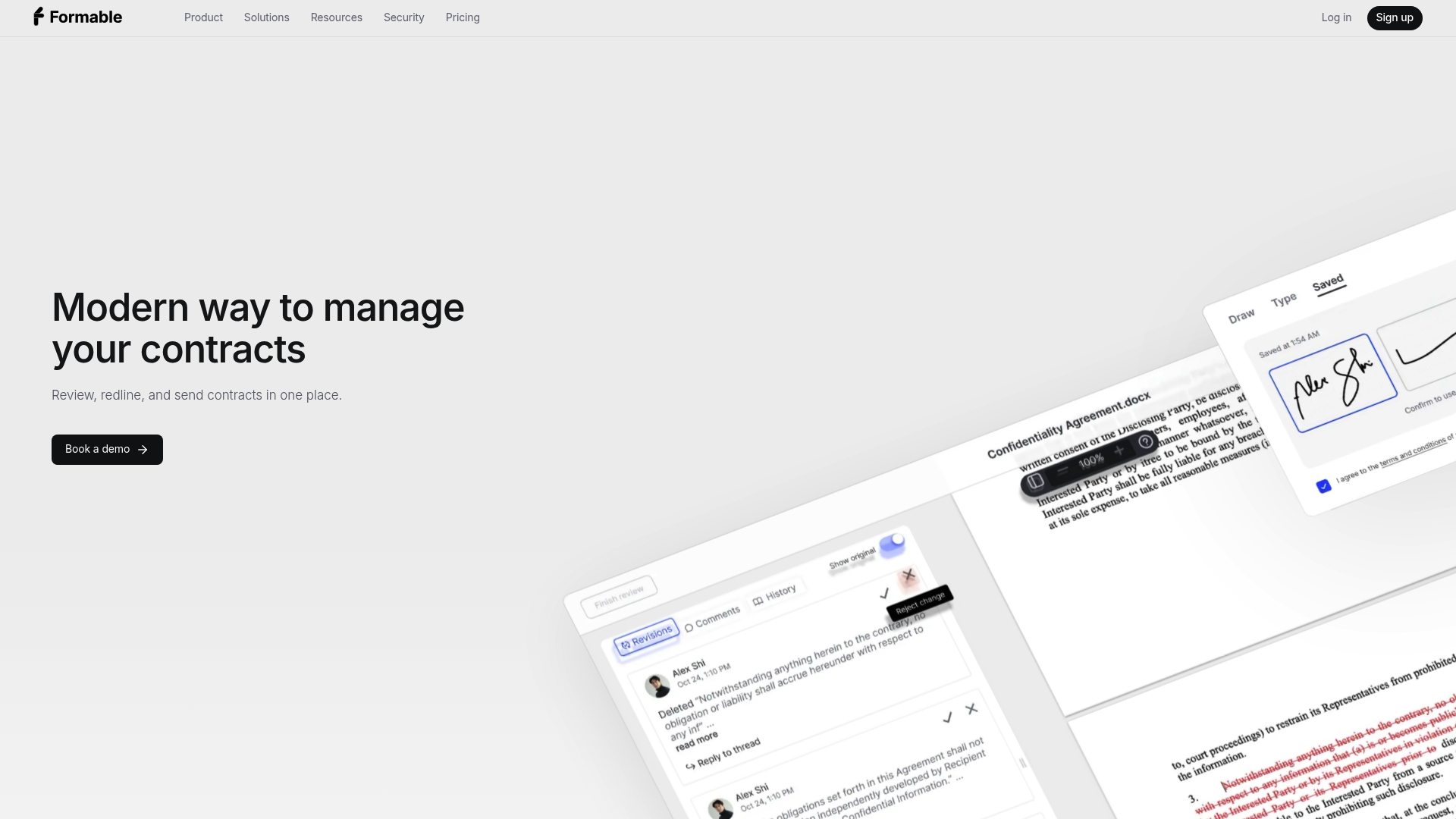
For teams that negotiate terms before signing, our browser-native negotiation tool lets both sides redline and align in real time, ahead of the signing stage. Once terms are settled, our e-signing feature closes the loop, and our embedded e-signing API lets development teams build signing directly into their own product rather than routing signers through a separate app. If your legal or GTM team also needs contracts reviewed for risk before they go out, our AI contract review engine flags issues against your own playbooks at intake.
Compare plans on our pricing page, where Pro plans start at a monthly price of $29.99, or see how we stack up against Dropbox Sign on our comparison page. Teams that need development help wiring embedded signing into a custom app can also find build support through Let's Build My App, a partner that works with API integrations like ours.

FAQ
Is Docusign or Dropbox Sign better?
The better choice depends on your workflow needs, since both handle standard e-signature requests reliably. Teams that also need contract negotiation, redlining, and review alongside signing often look at unified platforms rather than comparing e-signature tools in isolation.
What do Dropbox links look like?
A Dropbox Sign template link is a single URL that opens a signing flow with predefined fields and signer steps, distinct from a standard Dropbox file-sharing link that only grants access to a file or folder. Anyone who opens the template link can initiate the signing process, so it functions more like a public form than a shared document.
Is Dropbox Sign legally binding?
Electronic signatures collected through Dropbox Sign are designed to meet standard e-signature legal frameworks, though specific compliance depends on your jurisdiction and use case. For details on how legally binding e-signatures work within a contract platform, see our security and compliance page.
Is Dropbox Sign good?
Dropbox Sign works well for straightforward signature requests, particularly when templates and template links match the use case correctly. Teams that need signing combined with negotiation, redlining, or AI-assisted contract review typically pair it with or move to a broader contract workflow platform.